
No Stress, No Anxiety, No Guessing: Have a Flawless Road Trip with an EV Route Planner
Relying on a single app for an EV road trip can get you in trouble; here are our favorite

Back in the day, navigation directions could be a painful thing. You’d call the person you were going to see—on a landline—and they’d give you turn by turn directions; you’d write them down on a pad that you kept by your telephone, which was also a landline.
If you were smart, you’d get out your paper map and trace their directions before you set out so you’d be sure you understood everything they said, and make sure you didn’t hear ’98’ when you were told 9A. You had to write fast, after all.
If you didn’t check your instructions against the map you could become horribly lost. That 9A exit? There are actually three of them, and you were told to take the 3rd, but you didn’t check the map and of course, thought you must have heard wrong, so you took the first and were late to dinner (true story).
You’d think with all the navigation tech, apps and built-in features, this process wouldn’t be necessary for an EV road trip. But is it?
This story is 100% human-researched and written based on actual first-person knowledge, extensive experience and expertise on the subject of cars and trucks.
Knowing Your Route Is the First Rule to Getting There Flawlessly
Fast forward and the same rules generally apply: always back up your plans. Look at the route Apple Maps or Google Maps has planned out for you; sometimes it’ll take you through iffy neighborhoods or dump you onto a confusing road. Don’t just rely on in-car navigation; know where you are going and how you’re going to get there so when navigation gives you a prompt, you know to expect it.
However, we live in a time of get-in-the-car-and-go, and I get it — I do this, too: Jump in the car and start driving before setting up navigation or asking the co-driver to do it. We are used to gassing up when we need to and ‘shopping’ gas prices via the tall price signs that loom over the highway.
That recipe can lead to disaster if you’re driving an EV. Charge stations don’t have signs; that means if you don’t plan your charge stops, you’re at the mercy of apps that may not do things the way you would, like pick a location with clean bathrooms—or that even has bathrooms at all. And, your speed, outside temperature, use of heat or A/C and load weights can impact your range; so that 200 miles you thought you could go may end up being 125 miles (this happened to me) so being aware of your range and where you’d like to charges is key to not getting stuck.
Read: 2025 Hyundai Ioniq 5 Long Term Test Drive: What It’s Like to Own and Drive This Popular EV
EV Makers Thought Of It All…Right?
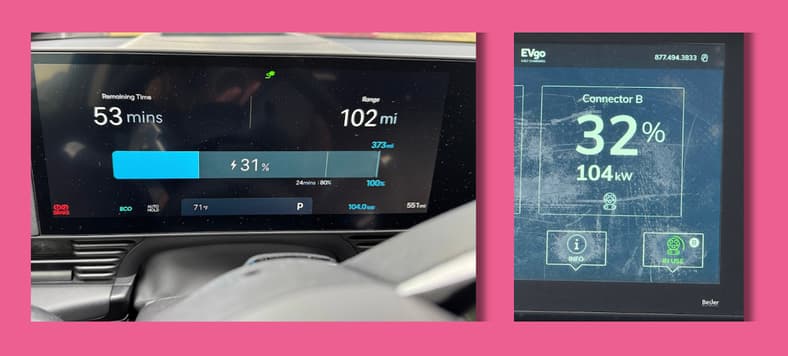
They try, and if you drive an EV, you’re grateful for the built-in range predictors, the navigation that will point you to a charger along the way and systems that will regulate the battery temperature so when you get to a charger, the car will charge quickly.
But, these systems aren’t perfect. Some systems will simply send you to the closest charge station; others will let you pick the station but you might need to pull over to do that if you’re driving solo. Yet others have layers of settings to muddle through in order to customize your settings. And not all settings are available on the car’s app to let you browse routes and charge stations when you’re not in the car.
Some of these features are available in your EV’s phone app, but each one is different and I find them to not be consistent or always helpful. Mostly I use the app to monitor charging and power level, though some are helpful in sharing charging prices and other details.
Read: Putting the Ford Mustang Mach-E To the True Test By Driving it Like I Own It
Backup Apps EV Route Planners Are a Must For a Road Trip
I learned the hard way: Have a backup app and use it to double check your trip plans. An app that you know well is most useful in places you’re not familiar with. Once you get used to using an app you’ll be able to easily integrate it into your planning; many cars with CarPlay or Android Auto will allow you to add it to your app suite.
Even if you can’t use an EV road map app on the car’s screen, you can add your stops to your car’s built in navigation or Google or Apple maps: Buc-ee’s in Hillsboro, Texas please!
Once nice thing about independent apps is that they usually show how many plugs are in use at a given time— and remember, if a lot of plugs are in use, the ones that aren’t will be slow because they are all drawing from the same source—and users can leave comments and photos so you can size up your plans ahead of time.
Read: The 10 Best Apple CarPlay Adapters
Fees and Charging Prices: How To Tell What It’ll Cost
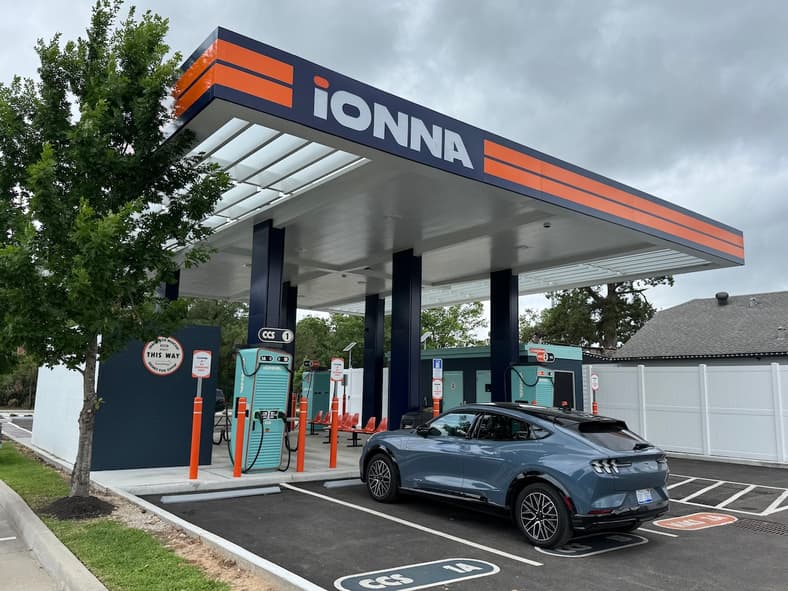
The apps are hit and miss on listing charge prices and other fees—and yes, there are other fees. So you may need to look deeper to find not just the price per kWh, which can vary brand to brand; in my neighborhood one Tesla charger is as much as .27 cents per kWh cheaper than a nearby non-Tesla charger.
And then, there are fees, which should be listed on the terminal, though again, finding that information can be hit and miss. Extra charges can include idle fees of up to $1 a minute once charging has stopped; ‘congestion’ charges that kick in when your charge goes past 80% because charging slows to a crawl and the system is assuming there’s someone waiting for that plug; and there’s usually an access fee of $1 or so to simply connect to the charger.
If your car is plug-and-charge capable and you’ve added a credit card to your car’s app, you’ll simply get a notification with the receipt when you’re done charging and it should break down the fees. If you have to tap a credit card, you can get a notification from your credit card but it may not break down the fees.
All fees should be listed on the charger, but that can be hard to see too, especially on chargers with foggy plastic windows or sun glare that makes the readout hard to see. When I charge at a new station I keep an eye on my car’s app so at the very least I don’t pay for idle time or congestion pricing.
The OG EV Route Planner App: PlugShare
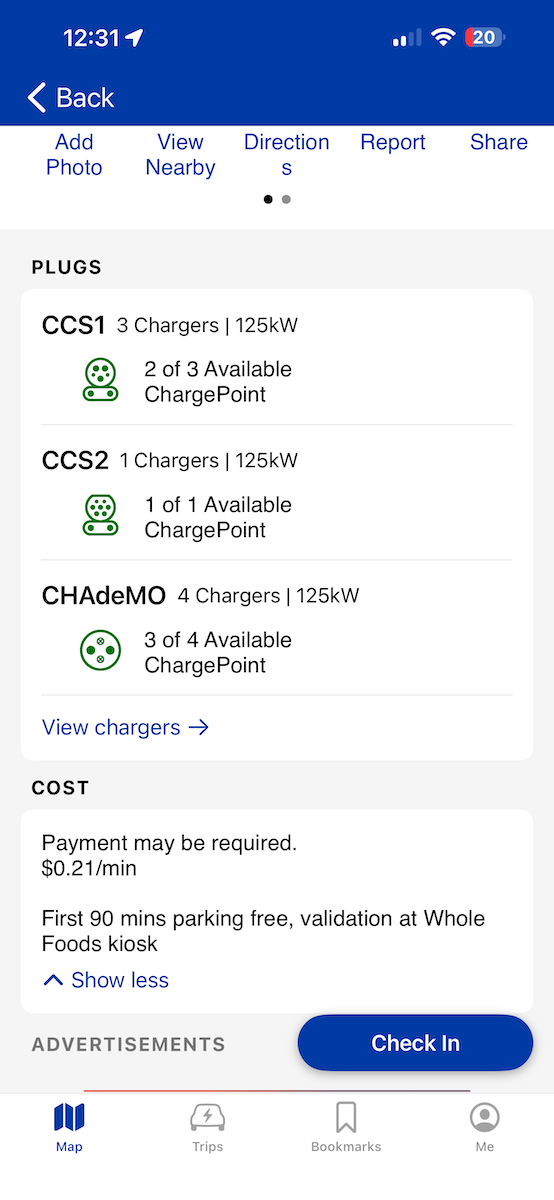
I have had PlugShare on my phone for a decade (yeah, that surprised me too). I like that it’s easy to use and once I set up my custom settings, they stay customized. I can set my ideal charge speed range, such as 100kWh+ and I can specify type of charger, such Tesla-style NACS or the outgoing standard CCS, or both (be sure to bring an adapter so you can use any type of charger).
PlugShare shows charging prices at some locations, but not all; it also shows the charger brand such as Tesla, Mercedes-Benz or EV Go, how many are in use, and the location of the of chargers, such as Buc-ee’s, Shell or Walmart. With more than 4 million users, it generates a lot of great user information.
The Newer EV Route Planner App: A Better Routeplanner
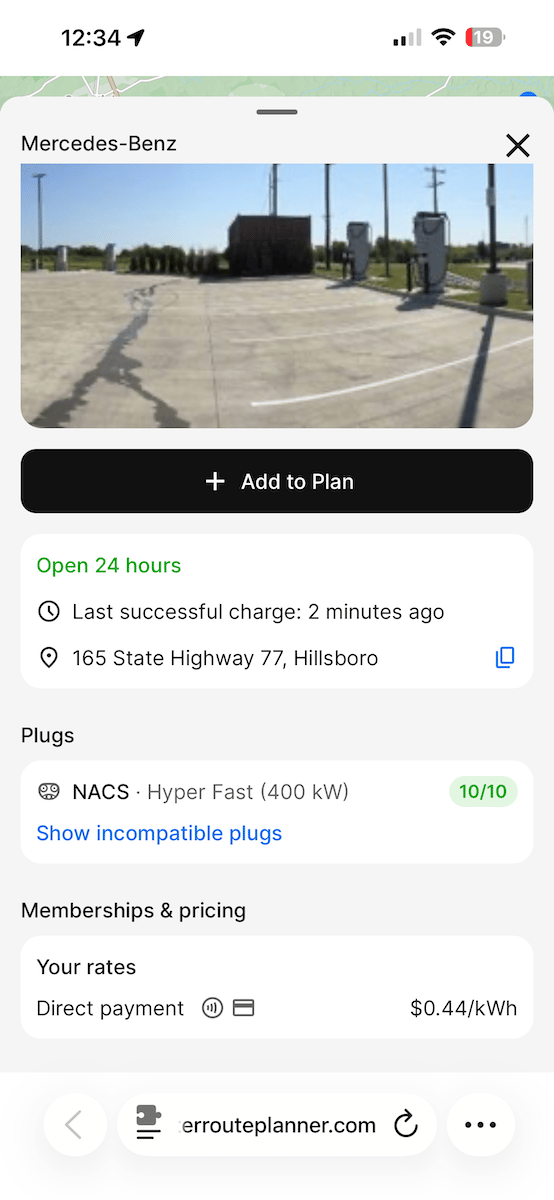
EV route planner ABRP was bought by Rivian and integrated into its in-car navigation, so it’s nice to know that this app’s features are what you’ll find on the Rivian native system (still, plan to have a backup). Even though it’s Rivian’s owned system, anyone can use the ABRP which still functions as a stand-alone app and website. This one is really popular among my automotive journalist colleagues, but it’s also been downloaded more than 1.5 million times and many users post their feedback, too.
Like PlugShare, ABRP lets you customize your settings, see which plugs are in use and in many cases, prices. The interface feels a bit more modern than Plugshare, and it has a bit more flexibility such as opting for charge stations with restrooms in your settings.
The Tesla App Is Key to Using Tesla Super Chargers
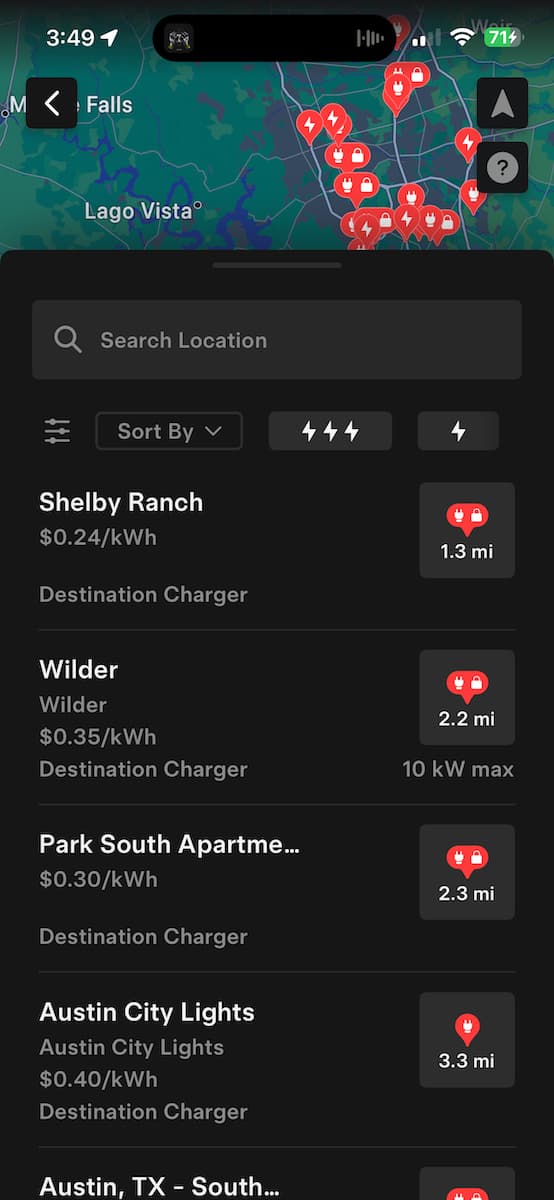
While the other apps will show you where the Tesla chargers are and possibly even list pricing, the Tesla app is the best for this. It’ll also show you which Tesla chargers don’t welcome non-Tesla vehicles and pricing including idle fees and congestion rates.
And if you want to use a Tesla Super Charger and don’t have plug-and-charge set up in your car, you’ll need to put a credit card into the Tesla app in order to charge; the charge terminal is activated through the app.
Map Apps List EV Charge Stations—But is it Enough?
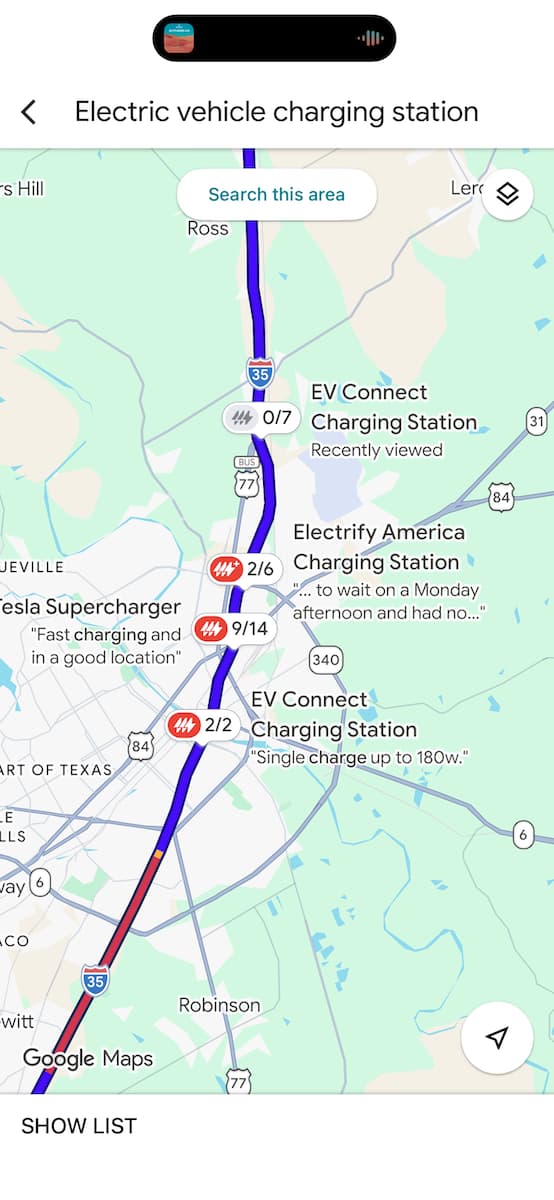
Apple Maps and Google Maps both list EV charge stations and will allow you to set a destination and add charging stops. I like that Apple Maps pulls data from Plugshare so it delivers some nice value.
Google Maps adds EV charger information as it does with anything else, from gas stations to coffee shops: there are photos, comments, ratings and you can see which plugs are in use. Both are good to have but I wouldn’t use either as my backup since they are not native EV mapping apps.
A Flawless EV Road Trip Needs a Good EV Route Planner
The fact that planning is always important to any trip isn’t changed much by all the tech we have in our hands. We still need to understand how far we can go, how much things will cost, how to avoid expensive surprises and to make the most of our time on the road.
For me, a trip from Austin to Dallas means a stop at Bojangles, another at Buc-ee’s and once I get there, finding cheap overnight charging. I love that I can charge as much as I need to get to the next station—I never charge to 100% because it’s tough on the battery, and with a good EV route planner, I don’t need to. However, I do wish charge stations had signage the way gas stations do so I could see them from the highway, compare pricing and see other businesses in the area. But I’m grateful for EV route planners that do a lot of the legwork for me.

More About:Car Culture